Git General Notes GTD
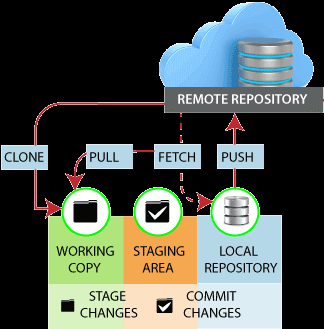
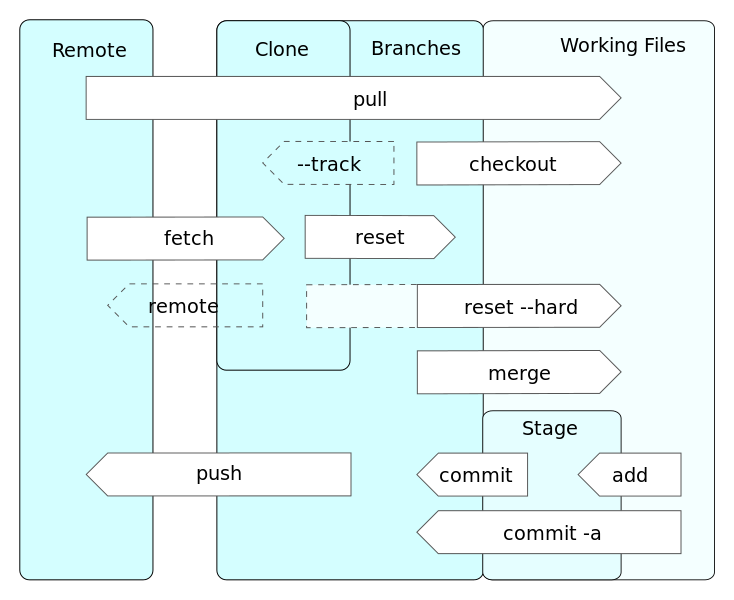
Git Sheet cheat
SWTM-2088_Atlassian-Git-Cheatsheet.pdf
Git Clone
git clone https://legomez:XXX@ummsm.visualstudio.com/ACP2023/_git/ACP2023
Git Branch
Git Branch | Atlassian Git Tutorial This command will show what branch you are on:
git branch
To create a new branch and enter this branch use this:
git checkout -b [branch name]
git push -u origin [branch name]
This will move you to the master branch
git checkout master
Then you can lose all your changes and rest back to the master branch: (this is a no no)
git reset --hard origin/master
List all branches
git branch -a
Git Commit
git commit -m "update the README.md with link to contributing guide"
Note, a simple git pull will always get the current updated of your current branch note always do a git status first.
git status
git pull
Git remove committed file after push
github - Git: Remove committed file after push - Stack Overflow 4 Ways to Remove Files from Git Commit History (sitereq.com)
git clone branch command
How do I clone a specific Git branch? - Stack Overflow
git clone -b my-branch git@github.com:user/myproject.git
Example for ACP
git clone -b url_update_subfolder https://legomez:XXXXXXXXX@ummsm.visualstudio.com/ACP2023/_git/ACP2023
Git push
It should only take 10 seconds.
Git execute bash
docker exec -it <mycontainer> bash
Git Enter a new tag
Git renaming a branch
How to Rename Git Local and Remote Branches (w3docs.com) here is a sample of renaming 2023_recreate_docker to roll2024 -m --move Move/rename a branch, together with its config and reflog.
git branch -m 2023_recreate_docker roll2024
Pushing the new branch to remote (Note: ensure that you are in(check out) the branch before doing this.)
git push origin roll2024
To delete the old branch on remote (suppose, the name of remote is origin, which is by default), use the following command:
git push origin --delete 2023_recreate_docker
How do I delete a Git branch locally and remotely?
Delete branch in both local and depo
delete branch locally
git branch -d branch_name
delete branch remotely
git push origin --delete remoteBranchName
More detailed
1. Delete a Branch Locally
To delete a branch locally, use the following command:
git branch -d branch_name
- This deletes the branch only if it has been fully merged into its upstream or the current branch.
- If the branch is not fully merged and you still want to delete it, use:
bash
  git branch -D branch_name
2. Delete a Branch Remotely
To delete a branch from the remote repository, use the git push command:
git push origin --delete branch_name
3. Confirm the Deletion
After deleting the branch, you can verify:
-
Locally:
bash
  git branch
The deleted branch should no longer appear in the list. -
Remotely: Fetch the updated branch list from the remote:
bash
  git fetch -p
Then check the remote branches:bash git branch -r
Example Workflow
-
Delete the branch locally:
bash git branch -d feature-branch -
Delete the branch remotely:
bash git push origin --delete feature-branch -
Verify:
bash
   git branch       ## Confirm it's gone locally
   git branch -r    ## Confirm it's gone remotely
Delete Local Branch
git branch -d <branch_name>
for this issue
git branch -d 2023
Then delete the branch in the server:
Delete Remote Branch
git push <remote_name> --delete <branch_name>
For this issue
git push origin --delete 2023
git add changes from one branch to another (Merging two bran)
This is what I'm trying to do is to remove the 2023 brach copy cron_fix to become 2023 merge cron_fix with 2024
Merging two branches
merge - Merging multiple branches with git - Stack Overflow here is a sample how I accomplish this: Merging cron_fix brach to 2024 brach. Note: enrure that there are zero changes pending in your git before doing this, so please always do a git status first.
 git checkout 2024
 git merge origin/cron_fix
Then you will need to clean everything up with the merge conflicts, do an add, commit and then do a push to complete this merge.
git add .
git commit -m "#NNN. XXX"
git push origin 2024
Aborting a git merge
git merge --abort
update git local database to remote
git fetch --all
Moving changed files to another branch for check-in
## work on some code
git stash
git checkout correct-branch
git stash pop
git - moving changed files to another branch for check-in - Stack Overflow
Amending the most recent commit message
git commit --amend -m "New commit message"
git - How to modify existing, unpushed commit messages? - Stack Overflow
edit the git .gitignore
locate file off the root of git repost it is called .gitignore
Merge Two branches in git
git checkout acp2024-docker
git merge acp2024-docker-new-applicant-view
git push
git branch -d acp2024-docker-new-appliant-view
Git get diff between two commits
## git diff oldCommit..newCommit
git diff k73ud^..dj374
How Completely Uninitialize (Remove) Git from your Project
rm -rf .git
How do I load a specific git commit?
How do I load a specific git commit?
git checkout <commit-id>
How to git pull and overwrite local changes
Version control - How do I force "git pull" to overwrite local files? - Stack Overflow
First, update all origin/<branch> refs to latest:
git fetch --all
Backup your current branch (e.g. master):
git branch backup-master
Jump to the latest commit on origin/master and checkout those files:
git reset --hard origin/master
How to undo a bad commit
Git Remove Last Commit – How to Undo a Commit in Git (freecodecamp.org)
git revert cc3bbf7 --no-edit
How to delete a file from git and it's history
To remove a file from a Git repository and delete its history, you can use the following steps. Be cautious, as this will rewrite the history of your repository. Make sure you have backups and inform your collaborators.
-
Clone your repository if you haven't already:
bash git clone <repository_url> cd <repository_name> -
Use
filter-branchto remove the file from all history:bash git filter-branch --force --index-filter "git rm --cached --ignore-unmatch <path_to_file>" --prune-empty --tag-name-filter cat -- --all -
Remove the backup history created by
filter-branch:bash rm -rf .git/refs/original/ -
Perform garbage collection to remove the file from disk:
bash git reflog expire --expire=now --all git gc --prune=now --aggressive -
Force push the changes to the repository:
bash git push origin --force --all git push origin --force --tags
Detailed Steps:
-
Clone the repository:
bash git clone https://github.com/user/repo.git cd repo -
Use
filter-branchto remove the file:bash git filter-branch --force --index-filter "git rm --cached --ignore-unmatch path/to/file" --prune-empty --tag-name-filter cat -- --allReplacepath/to/filewith the actual path of the file you want to remove. -
Remove the backup history:
bash rm -rf .git/refs/original/ -
Garbage collection:
bash git reflog expire --expire=now --all git gc --prune=now --aggressive -
Force push to the repository:
bash
   git push origin --force --all
   git push origin --force --tags
This process will permanently remove the file from your repository's history. Be sure to inform any collaborators, as they will need to re-clone the repository due to the history rewrite.
Fix commit message of a past commit in Git
To change the commit message of a past commit in Git, you can use the git rebase command. Here are the steps:
-
Identify the Commit: Determine how far back the commit you want to change is from the current HEAD. For example, if it's the third commit back, you will need to rebase the last three commits.
-
Start an Interactive Rebase:
sh git rebase -i HEAD~3Replace3with the appropriate number of commits back from the current HEAD. -
Edit the Commit Message:
- An interactive editor will open with a list of commits.
- Find the commit message you want to change. It will look something like this:
pick <commit-hash> <old-commit-message> -
Change the word
picktorewordfor the commit you want to edit:reword <commit-hash> <old-commit-message> -
Save and Close the Editor:
-
Save the changes and close the editor. A new editor will open for you to change the commit message.
-
Change the Commit Message:
-
Edit the commit message as desired and save the changes.
-
Finish the Rebase:
-
After saving the new commit message, Git will reapply the changes and complete the rebase process.
-
Force Push (if necessary):
- If you have already pushed the commits to a remote repository, you will need to force push the changes:
sh
     git push --force
Example:
1. Start the interactive rebase:
sh
   git rebase -i HEAD~3
2. Change pick to reword:
reword e3a1d4b Updated README file
   pick 7f3e2b1 Added new feature
   pick 2d1f5c7 Fixed bug in feature
3. Save and close the editor. Edit the commit message:
Updated README with new section on installation
4. Save and close the editor. Git will complete the rebase.
5. Force push (if necessary):
sh
   git push --force
Following these steps will allow you to change the commit message of a past commit in Git.
Export the last 100 commit to a text file to see what needs to be fixed.
git log HEAD~100..HEAD --pretty=format:"%h %s" > ./GTD/temp/commit_list.txt
Here is with reverse order
git log HEAD~100..HEAD --pretty=format:"%h %s" | tac > ./GTD/temp/commit_list.txt
Git merge in changes from master
To merge changes from the master branch into your current branch using Git Bash, follow these steps:
-
Switch to the current branch (if you're not already on it):
bash git checkout <your-branch-name> -
Fetch updates from the remote repository to make sure you have the latest changes:
bash git fetch origin -
Merge master into your current branch:
bash git merge origin/master -
Resolve any conflicts (if they appear) by editing the conflicting files and then staging the changes:
bash git add <conflicted-file> -
Complete the merge by committing the resolved changes:
bash git commit -
Push the updated branch to the remote (optional, if you want to update the remote branch):
bash
   git push origin <your-branch-name>
This will bring all changes from master into your current branch without switching to master itself. Let me know if you need any more help!
To merge changes from the master branch into your local branch, follow these steps:
- Switch to your local branch (the branch you want to update with changes from
master):
git checkout your-branch-name
- Pull the latest changes from
master(to ensure your localmasterbranch is up-to-date):
git checkout master
git pull origin master
- Switch back to your local branch:
git checkout your-branch-name
- Merge the changes from
masterinto your local branch:
git merge master
- If there are no conflicts, the merge will complete automatically.
-
If there are conflicts, Git will notify you, and you’ll need to resolve them manually.
-
Resolve conflicts (if any):
- Open the conflicting files in your editor and fix the conflicts.
- After resolving, mark the files as resolved:
git add filename
- Then complete the merge:
git commit
- Push your updated local branch (optional):
git push origin your-branch-name
Let me know if you need help resolving conflicts or have other Git questions!
To get the last commit that is different from the master branch or all different commits in a branch, you can use the following Git commands:
1. Get the Last Commit That Is Different from master
git log master..your-branch --oneline | tail -n 1
- This finds all commits in
your-branchthat are not inmasterand returns the last one in the list. - Replace
your-branchwith the name of your branch.
2. Get All Commits in your-branch That Are Not in master
git log master..your-branch --oneline
- This lists all commits that exist in
your-branchbut not inmaster.
3. Show the Full Commit Details for Each Different Commit
git log master..your-branch
- This gives a detailed log of all the different commits.
4. Show Just the Commit Hashes
git rev-list master..your-branch
- This lists only the commit hashes of different commits.
5. Get the First Commit That Is Different from master (Earliest Diverging Commit)
git merge-base master your-branch
- This gives the commit where
your-branchdiverged frommaster.